Interface
Some screenshots in this guide were taken on an older ALB release. They still show the same main areas, but small label or spacing details may differ.
Main window
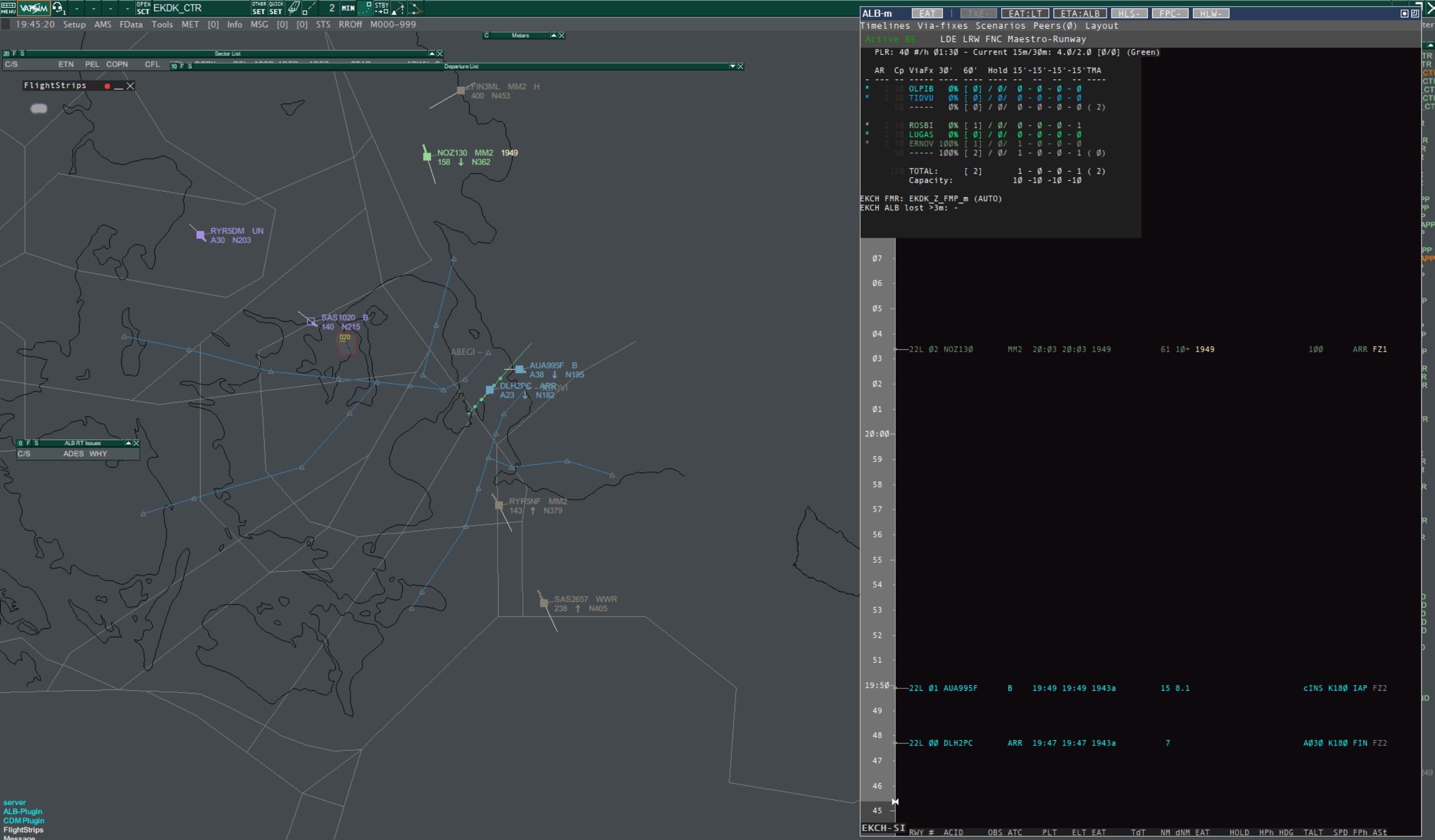
ALB is built around four working areas:
- The top button row for quick policy and display toggles
- The menu row for timelines, via-fixes, layout, peers, and older retained legacy surfaces
- The stats and arrival-planning block at the top left
- The timeline area containing the aircraft rows
Presentation controls and timeline navigation
The left side of the top button row now starts with local presentation controls. They affect only what your ALB window shows. They do not change sequencing, timing, FMR authority, or shared peer state.
FULLis a reserved future compute-mode control. It is visible but disabled in the current release, so ALB continues to run inFULLmode.LEANis not currently an operator-selectable mode.TL*/TL-shows or hides the timeline area.*means shown and-means hidden.STAT*/STAT-shows or hides the statistics and arrival-planning block.
Click TL or STAT to change your local presentation. With the timeline
hidden, ALB can show a compact statistics-only view or a header-only view.
Normal timeline size is retained and restored when you show the timeline
again. Manual window resizing is intentionally unavailable while the timeline
is hidden.
Each visible timeline also has a narrow vertical elevator at its right edge:
- drag the thumb to move through the future portion of that timeline
- click above or below the thumb to page
- press
Page Upto move further into the future andPage Downto return toward the current-time view - press
Hometo return to the current-time view andEndto jump to the furthest available future view
The elevator only changes the visible time window. It does not move aircraft, change a plan, or alter the shared sequence.
Stats and arrival-planning block
The planning block overlaps the upper-left part of the timeline area.
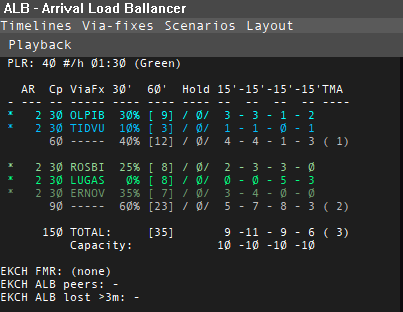
The top line contains the airport-wide landing plan:
PLRis the planned landing rateExpected LRdirectly below it is the read-only LT forecast row and only shows a real rate inEAT:LT- the actual landing figure shows recent achieved landing rate
- the missed figure shows recent missed-approach activity
Each via-fix line then shows the stream-specific planning picture:
AR: current minutes between releases for that streamCp: capacity implied by the current AR- the via-fix name
- near-term demand distribution
- number of aircraft in hold
- 15-minute buckets
- the stable
30'overview column - TMA count
Practical reading notes:
- the
30'header is the fixed 30-minute overview column, not an aircraft count label - if that 30-minute percentage is currently unavailable, ALB should now show
aligned
--% - in
EAT:AR, stream demand can still be derived from valid via timing even when LT-only landing products are not available
Lines showing ----- are separators or subtotal breaks from the configured timeline definition.
What is clickable here
- Left-click
PLRto decrease the planned landing rate by 1 - Right-click
PLRto increase the planned landing rate by 1 - Left-click a stream
ARto decrease the interval by 1 minute - Right-click a stream
ARto increase the interval by 1 minute
In EAT:LT, AR is not the active planning driver. Visible AR values are legacy/context information, and AR adjustment is not the normal control method.
Timeline area
The timeline rows are the operational center of ALB.
- Left-click an aircraft row to select it
- When possible, that selection follows EuroScope ASEL behavior
- If you select an aircraft elsewhere and it is relevant to the active timelines, ALB can highlight it in the list
- Right-click an aircraft row to open the aircraft action menu
- Whether ordering and sequence actions are stream-relative or global depends on the current feeder or runway layout
See Aircraft Actions for the right-click behavior. See Feeder View vs Runway View for the layout-specific meaning.
In normal EAT:LT operation, ALB keeps a shared landing order stable rather
than continuously reshuffling it for ordinary estimate movement. Use the
right-click Advance 1 or Resequence actions only when an operational event
means the existing order no longer represents the traffic situation.
Combi field scope
Some layouts include the compact glEatCombi field.
Practical rule:
- ALB only shows Combi output for aircraft that belong to traffic covered by a currently active ALB timeline
- in practice that means the aircraft destination must be part of an active
timeline's
destinationAirports - unrelated traffic outside the active ALB timeline scope is now left blank instead of showing a configured empty Gain/Lose placeholder
If you want Combi to appear for a destination, activate the matching timeline.
If you want a visible placeholder when Gain/Lose is selected but empty, use
glEatCombiDisplay.gainLooseEmptyText in the config.
For feeder-style Gain/Lose reading, a blank result can now also be deliberate.
ALB no longer forces a misleading G00 for traffic that is already
operationally downstream of where that feeder indication is useful.
ELT and ETA in the display
Some layouts show landing-time style labels such as ELT, ELT-ES, or ELT-ALB.
ELTmeans estimated landing timeELT-ESis the live EuroScope-style branchELT-ALBis the ALB-corrected branch when that branch is relevant
In current Runway EAT:LT use, displayed Gain/Lose should be read against the
current live landing estimate branch. It is meant to show present conformance
to the plan, not a stale scheduler-only comparison snapshot.
ELT-ALB may include ALB's configured orange timing before the aircraft is deep into terminal handling. In ALB documentation, orange timing means the configured route or STAR-based track miles from the via-fix or holding-fix area toward touchdown. It is a planning estimate used while the aircraft is still far enough out that route-based timing is useful.
At a practical level, ALB builds that estimate from the via-fix timing anchor plus a configured orange distance-to-land. It then converts that distance into time with a three-part descent model:
- a higher-distance segment that assumes faster descent speeds
- a TMA segment for the next part of the arrival
- a final segment close to landing
The current baseline is roughly jet-like:
- about
250 KIASin the higher segment - about
180 KIASin the TMA segment - about
145 KIASon the final segment
When flight-plan performance data is available, ALB can refine those segment speeds for the specific aircraft. When upper-wind data is available, ALB can also let that wind shift the ground-speed side of the estimate.
In current builds, ALB also guards the ALB branch against obviously
implausible near-via route timing. If the route-derived via-fix timing close to
the via-fix is not physically credible, ALB should not let that bad transition
timing cascade into ELT-ALB. In practice that means the ALB branch may
temporarily stay on the safer live ES branch, or retain a still-trusted prior
ALB branch, until the timing picture becomes credible again.
When a validated route via-fix bypass gives ALB good enough timing evidence,
the ELT-ALB branch can now seal earlier instead of waiting for the ordinary
full route-timing path.
In current LT operation, a usable landing ELT can also be enough for ALB to
assign a landing slot even before every fuller route-derived timing product is
available.
Once the aircraft is inside terminal or post-via handling, ALB should not keep inventing a separate orange-based landing estimate. At that point the live EuroScope-style branch is normally the safer basis.
The top-row ETA:ES or ETA:ALB button controls which estimate branch ALB uses where that policy applies.
For the full config and tuning details, see Config File Reference.
Status line and peer awareness
The lower information area is used for ALB status text. It is where mode and communication health feedback appears, while the Peers menu gives you a compact airport-by-airport view of who else is connected.
In current ALB builds, the Peers view may also summarize the peer's EAT
policy and ETA branch context in a compact form. It remains an informational
surface, not the place where you change authority.
In current simplified control-bar layouts, Peers appears immediately after
Layout.